Point of Sale & Business OperationsAccounting
Create Account
Add a new account to your chart of accounts.
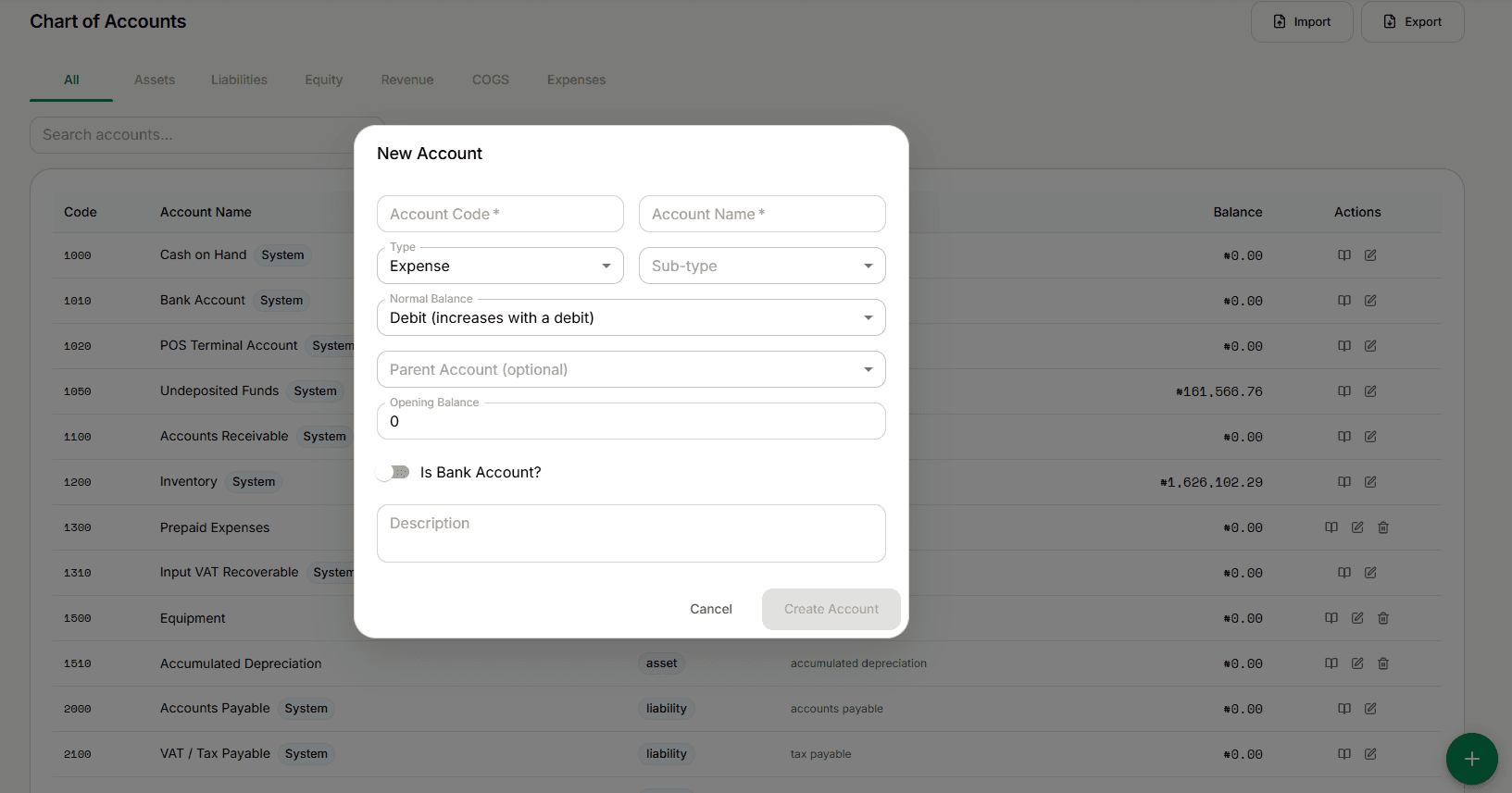
Fields
- Account Code and Account Name (both required)
- Type (required) — Asset, Liability, Equity, Revenue, COGS, or Expense
- Sub-type — options depend on the Type selected:
- Asset → cash and bank, accounts receivable, inventory, fixed asset, other asset, prepaid expense
- Liability → accounts payable, tax payable, credit card, short-term loan, long-term loan, other liability
- Equity → owners equity, retained earnings, drawings
- Revenue → sales, service income, other income
- COGS → cost of goods sold, purchase returns
- Expense → payroll, rent, utilities, marketing, general admin, depreciation, bank charges, other expense
- Normal Balance — Debit or Credit. Defaults automatically from Type (Asset/Expense/COGS → Debit, Liability/Equity/Revenue → Credit), but you can override it.
- Parent Account (optional) — only shows top-level accounts of the same Type you selected; picking one nests your new account under it.
- Opening Balance (optional, defaults to 0)
- Is Bank Account? — toggle on to reveal Bank Name and Account Number.
- Description (optional)
There's no Tax Rate or Location field on this form — every account applies workspace-wide.
Editing a system account
Editing an account PharmacyCopilot depends on (marked System in the list) locks its Type, Sub-type, Normal Balance, and Opening Balance — only the name, description, and bank details can change. Its opening balance is managed automatically.
Changing Opening Balance on a regular (non-system) account shifts its balance by the difference — but doesn't create a journal entry. Post a matching journal separately (see New Journal Entry) to keep the books balanced.