Drafts (Add & List)
Save an in-progress sale to finish later, without losing the cart.
A draft is a sale saved with type: draft instead of being finalized — the same underlying record as a normal sale, just not yet completed.
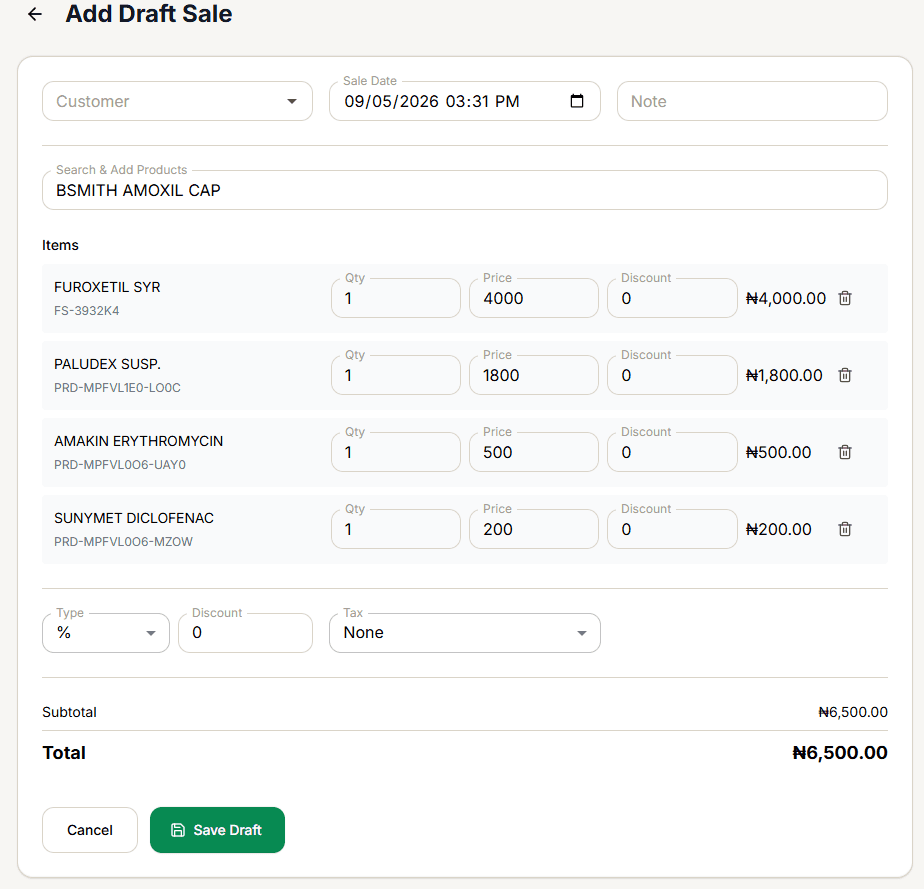
Adding a draft
Fill in the sale details
Customer is optional (unlike a quotation). Sale Date defaults to now. Note is optional.
Search and add products
Use Search & Add Products to find items — each becomes an editable row (Qty, Price, Discount), with a running Subtotal/Discount/Tax/Total below.
Apply a discount or tax (optional)
Type is % or Flat, with a Discount amount. Tax is None, VAT 7.5%, or VAT 5%.
Save
Save Draft stays disabled until at least one item is added.
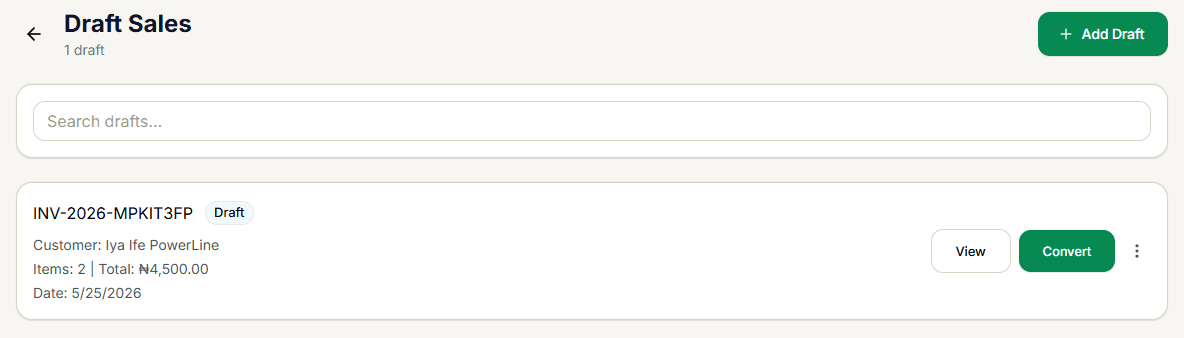
Finding your drafts
A dedicated Draft Sales list shows everything saved this way, separate from completed sales — searchable by invoice number or customer. Each entry shows the customer, item count, total, and date.
Finishing a draft
- View — opens the draft's Sale Detail page.
- Convert — finalizes it immediately as a fully-paid cash sale for the exact draft total.
Convert doesn't open a payment screen — selecting it instantly marks the sale completed with payment method Cash and amount paid equal to the draft's total. If the customer is actually paying by card, transfer, or paying less than the total, don't use Convert — instead open the draft (via the ⋮ menu's Edit) and finish it through New Sale (Manual Entry)'s real payment step, or re-ring it from the Checkout Screen.
The ⋮ menu also offers View Details, Edit (reopens the same form, pre-filled — this one works correctly, unlike quotations), and Delete (with a confirmation dialog — see Deleting a Draft or Quotation).