Sales List & History
Every sale in your workspace, searchable and filterable by date, customer, and status.
Sales List is the full history of completed, voided, and refunded sales — the same list backs the Actions menu you'll use to view, return, or void any of them.
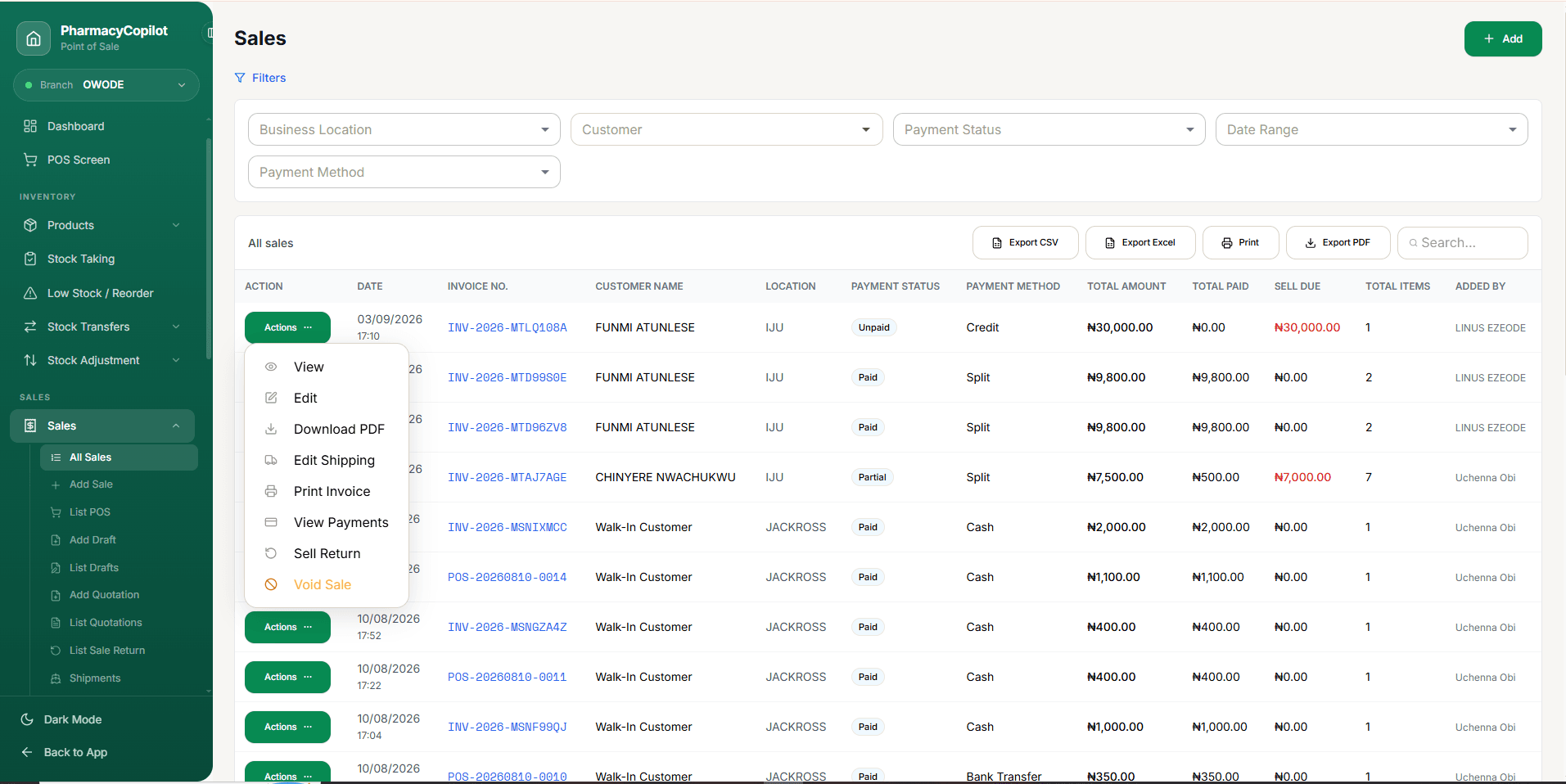
Filters
Select Filters to show or hide this panel — it stays open by default.
- Business Location — restrict the list to one location, or All.
- Customer — search and select a specific customer.
- Payment Status — Paid, Partial, or Due.
- Date Range — Today, Yesterday, Last 7 Days, Last 30 Days, This Month, Last Month, Current Financial Year, or Last Financial Year.
- Payment Method — Cash, Card, Bank Transfer, Credit, or Cheque.
Arriving here from a KPI card on the Accounting Overview page pre-applies a date/status filter for you — shown as a dismissible chip above the filters. Clearing it (the ×) removes the pre-applied filter without affecting anything else.
Reading the table
Each row is one sale:
| Column | What it shows |
|---|---|
| Action | Opens the Actions dropdown for that row |
| Date | When the sale was created |
| Invoice No. | The sale's auto-generated invoice number |
| Customer Name | The customer, or Walk-In Customer |
| Location | Which business location the sale was made at |
| Payment Status | Paid / Partial / Unpaid |
| Payment Method | Cash, card, bank transfer, credit, or cheque |
| Total Amount | The sale's full total |
| Total Paid | How much has actually been paid so far |
| Sell Due | Total Amount minus Total Paid, in red when greater than zero |
| Total Items | Number of line items on the sale |
| Added By | Who recorded the sale |
Below the table: Showing X to Y of Z entries, plus a running Total for every sale matching the current filters — not just the page you're looking at.
Exporting and searching
- Export CSV / Export Excel / Print / Export PDF all export the same 6 columns — Invoice No., Customer, Payment Method, Total, Paid, and Date — not the full table (Location, Sell Due, Total Items, and Added By aren't included in any export).
- Search filters the currently loaded rows as you type.
The Actions dropdown
Selecting Actions on any row opens a menu with up to 8 items:
View, Edit, Download PDF, Edit Shipping, Print Invoice, and View Payments all currently do the exact same thing — they open Sale Detail & Receipt for that sale. None of them jumps to a distinct edit form, a payments-only view, or triggers a direct download — from there, printing the receipt is real (see Printing & Reprinting a Receipt), but a completed sale still can't be edited directly. Only Sell Return and Void Sale below are genuinely distinct actions.
- Sell Return — goes straight to Process a Return for this sale.
- Void Sale — only appears for a completed sale. Opens the void confirmation dialog — see Void a Sale.
Starting a new sale from here
+ Add (top right) goes to New Sale (Manual Entry) — the same form documented there.