Sale Detail & Receipt
A single sale's full record — items, payment, linked accounting entry, and available actions.
Sale Detail shows everything about one sale: items, pricing, payment, its current status, and — if you have accounting access — the journal entry it posted.
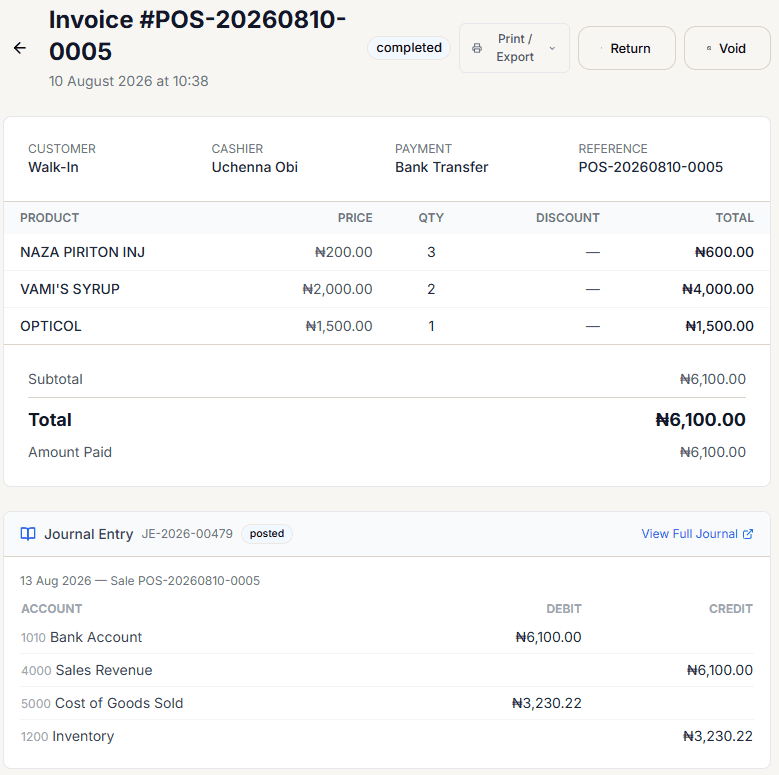
Reading the screen
- Header — the invoice number, date, and a status chip (completed, draft, held, returned, cancelled, or refunded).
- Print / Export — always available; see Printing & Reprinting a Receipt.
- Return and Void — only shown for a completed sale.
- Sale info — Customer, Cashier, Payment method, and Reference (the payment reference if one was recorded, otherwise the invoice number).
- Items table — product, price, quantity, discount, and line total.
- Totals — Subtotal, Discount (if any), Tax (if any), Total, Amount Paid, and Change (if any).
The linked Journal Entry
This section only appears if you hold the accounting:view_journals permission, and only for a completed sale — every completed sale posts one. If it hasn't synced yet, you'll briefly see "Journal pending — sync in progress" with a Retry button instead of the entry itself.
Once posted, it shows the entry number, date, a status chip (posted / voided / a pending state), and every debit/credit line with its account code and name. Select View Full Journal to open the complete entry — see Journal Entry Detail.
Outstanding balance
For a credit sale tied to a registered customer, an outstanding-balance badge appears below the totals, showing what that customer still owes.
Deleting vs. voiding
A finalized sale cannot be deleted — only a draft or quotation can be. Trying to delete a completed sale is rejected with "This sale cannot be deleted. Use Void or Sell Return instead." See Void a Sale.