Importing Sales (Bulk)
Bulk-import historical sales data, e.g. when moving from another system.
Bulk-import sales records from a CSV file — most useful when first migrating to PharmacyCopilot from another system, so historical sales data isn't lost.
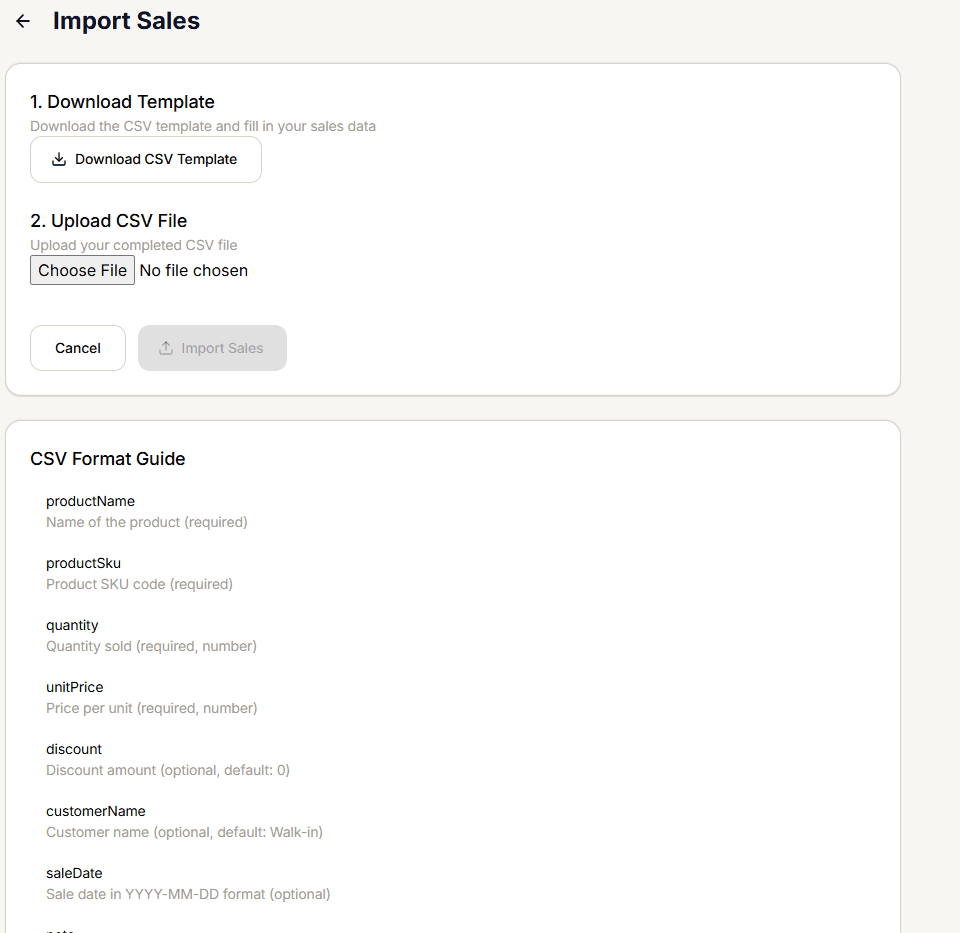
Download the template
Download CSV Template gives you a starter file with the right headers and two example rows.
Fill in and upload your CSV
Choose your completed file — only .csv is accepted. Once selected, the first 5 rows are shown in a preview table before you import anything, so you can catch formatting mistakes early.
Import Sales
Select Import Sales. Once it completes, you'll see Total Rows, Successful, and Failed counts — and if anything failed, up to the first 10 error messages.
CSV format
| Column | Required? |
|---|---|
productName | Required |
productSku | Required |
quantity | Required (number) |
unitPrice | Required (number) |
discount | Optional, default 0 |
customerName | Optional, default Walk-in |
saleDate | Optional, YYYY-MM-DD |
note | Optional |
Review the import results carefully once it completes — a bulk import doesn't go through the same per-sale checkout validation you'd hit entering sales one at a time.